> For the complete documentation index, see [llms.txt](https://support.emsigner.com/llms.txt). Markdown versions of documentation pages are available by appending `.md` to page URLs; this page is available as [Markdown](https://support.emsigner.com/user-dashboard-and-docstore/dashboard.md).

# Dashboard

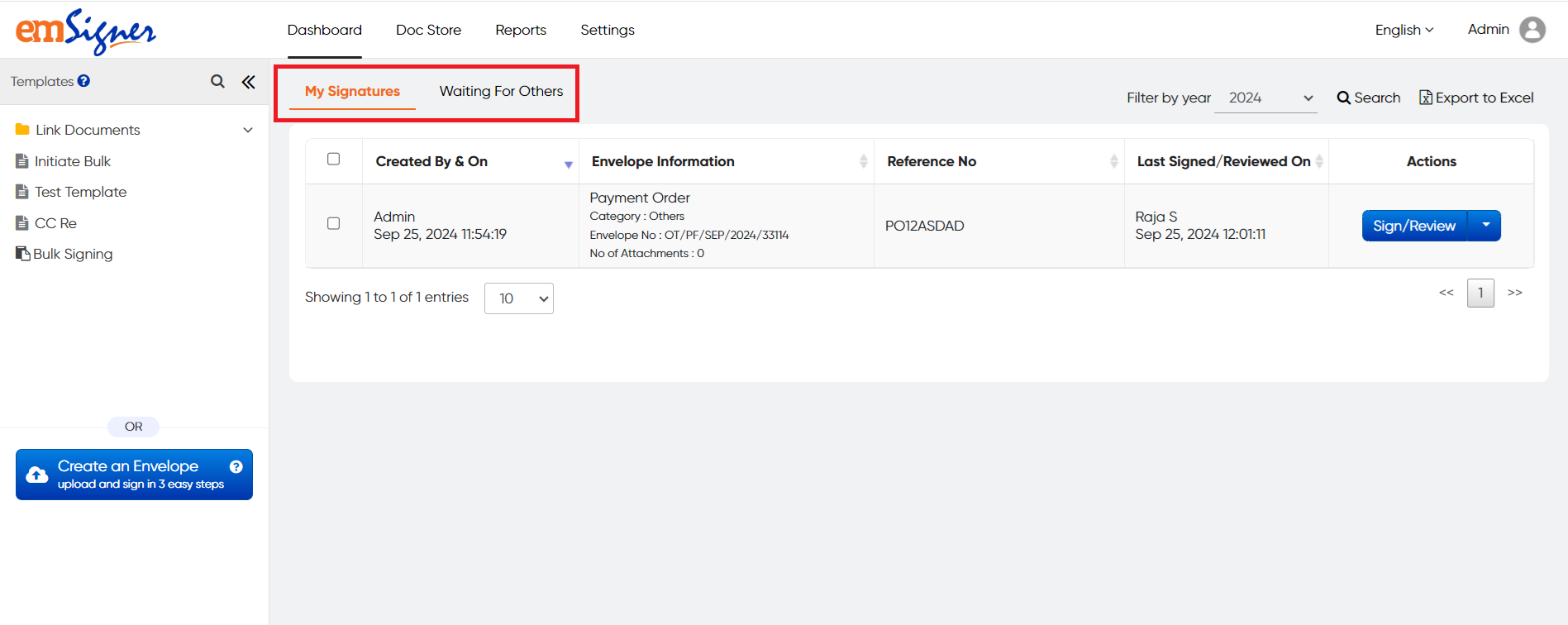
The emSigner dashboard is displayed in a single, consolidated view to help users monitor, analyze, and make informed decisions on the envelopes that are either initiated by them or of which they are a part. It consists of a summarized form of the pending documents present in emSigner shown in tab form, i.e., My Signatures and Waiting for Others.

* My Signatures: This consists of envelopes that are pending for signature from the Account User's side
* Waiting for Others: This consists of envelopes that are initiated by them but pending Signatures from others

Note: Both Admin and Internal users can view the dashboard that is relevant to them.

To access the Dashboard, the user has to follow the steps below.

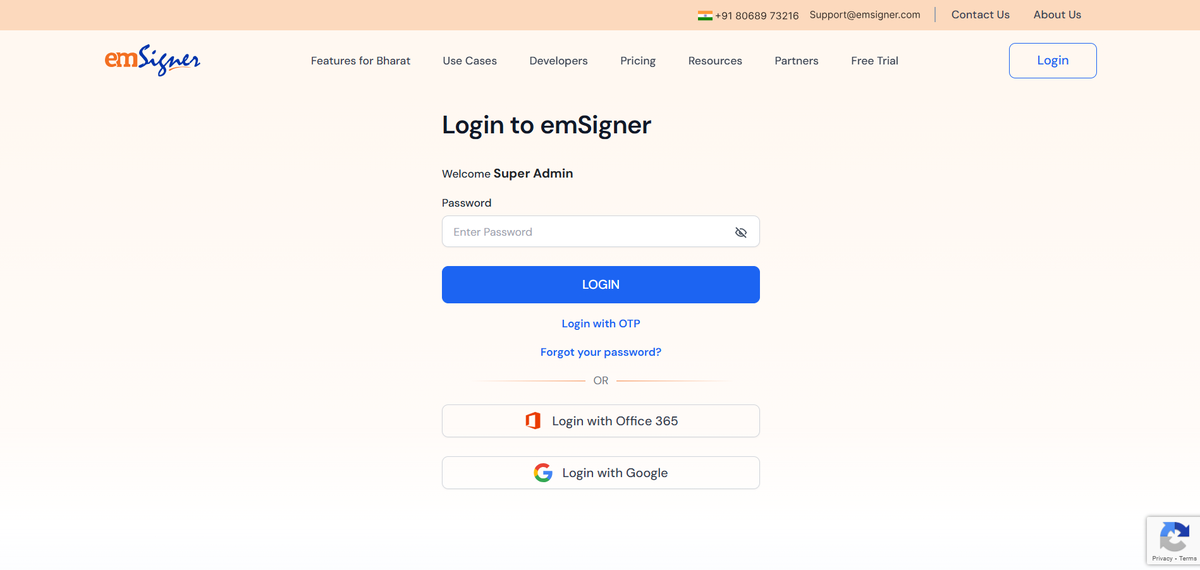
Step 1: Log in to the emSigner account using your **Admin User Name** and **Password**

<figure><img src="/files/nc2AEtqBadeaYVkj3xS4" alt=""><figcaption></figcaption></figure>

Enter the password to login into the account.

<figure><img src="/files/xFcoAXuXsXu5m4vpVcLU" alt=""><figcaption></figcaption></figure>

Step 2: You will see a dashboard on the landing page once you log in successfully.

<figure><img src="/files/FTX4SpECuEh2JI4rTSP3" alt=""><figcaption><p>Landing Page of emSigner - Dashboard</p></figcaption></figure>

The users can search any envelope using the Search option present in the dashboard. They can download reports of all the signing activities from a particular tile by clicking on the ***Export to Excel** button.* The application will populate all the envelopes of the Current year and the user can select any particular year from the dropdown to get the pending envelopes of that year.

<figure><img src="/files/6U2rC6JsefshdsE7b7yS" alt=""><figcaption><p>Search &#x26; Export</p></figcaption></figure>

&#x20;The users can search for any envelope in the tile by providing details like the Date range, Envelope Number, Reference number and other details.

<figure><img src="/files/DUa1WDJOfLdV5yAhFZvl" alt=""><figcaption><p>Search Filters in My Signatures</p></figcaption></figure>

The next subsections cover the type of Status of the envelopes, which are under the different tabs in the Dashboard.

---

# Agent Instructions
This documentation is published with GitBook. GitBook is the documentation platform designed so that both humans and AI agents can read, navigate, and reason over technical content effectively. Learn more at gitbook.com.

## Querying This Documentation
If you need additional information that is not directly available in this page, you can query the documentation dynamically by asking a question.

Perform an HTTP GET request on the current page URL with the `ask` query parameter, and the optional `goal` query parameter:

```
GET https://support.emsigner.com/user-dashboard-and-docstore/dashboard.md?ask=<question>&goal=<endgoal>
```

`ask` is the immediate question: it should be specific, self-contained, and written in natural language.
`goal` is optional and describes the broader end goal you are ultimately trying to accomplish on behalf of the user. GitBook uses it to tailor the answer towards what is most useful for that goal.

The response will contain a direct answer to the question and relevant excerpts and sources from the documentation.

Use this mechanism when the answer is not explicitly present in the current page, you need clarification or additional context, or you want to retrieve related documentation sections.
