> For the complete documentation index, see [llms.txt](https://support.emsigner.com/llms.txt). Markdown versions of documentation pages are available by appending `.md` to page URLs; this page is available as [Markdown](https://support.emsigner.com/renew-upgrade/changing-your-plan.md).
# Changing your plan
How do I upgrade my subscription?
**Upgrading Your Subscription**
Account administrators can upgrade their emSigner subscription plan directly from within the platform. Follow the steps below to complete your upgrade.
> **Note:** Only the Super Admin of the account can perform subscription upgrades.
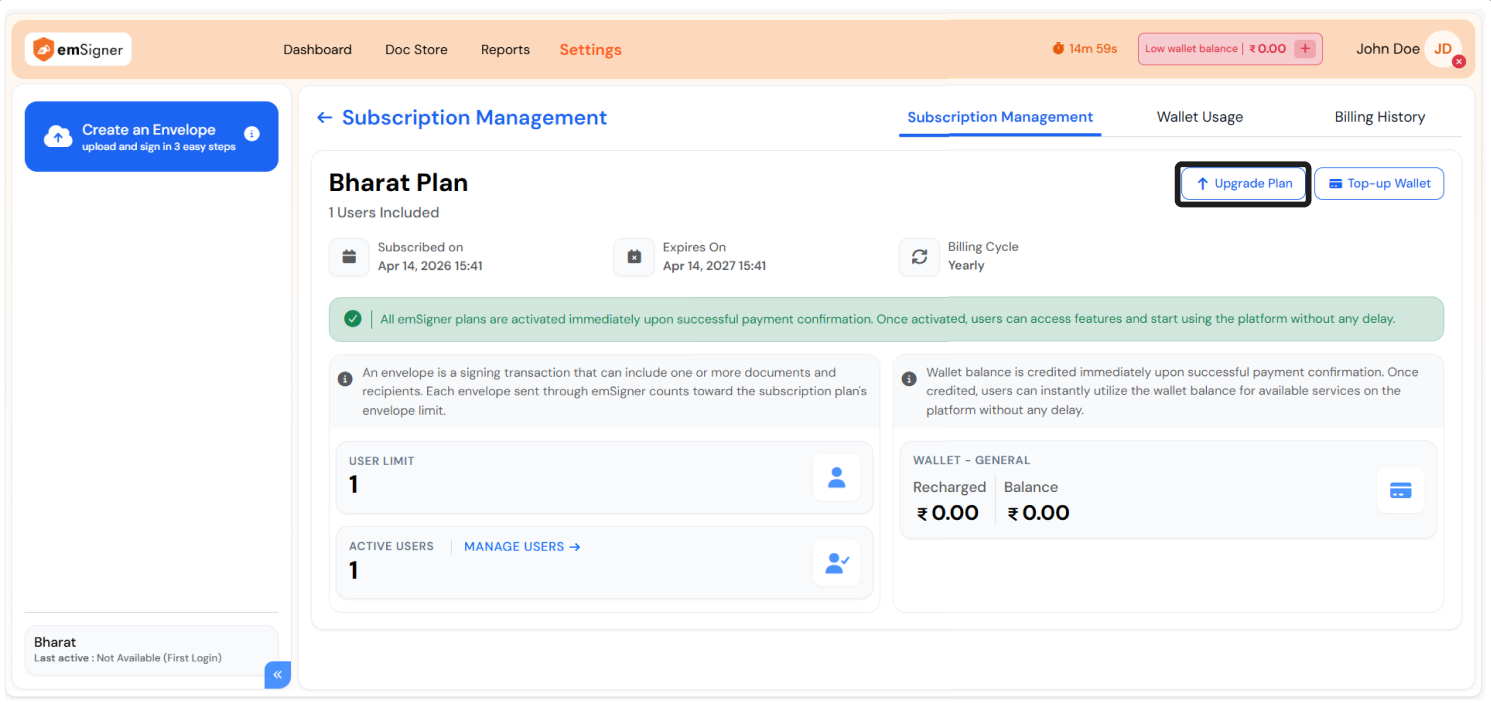
**Step 1: Navigate to Subscription Management**
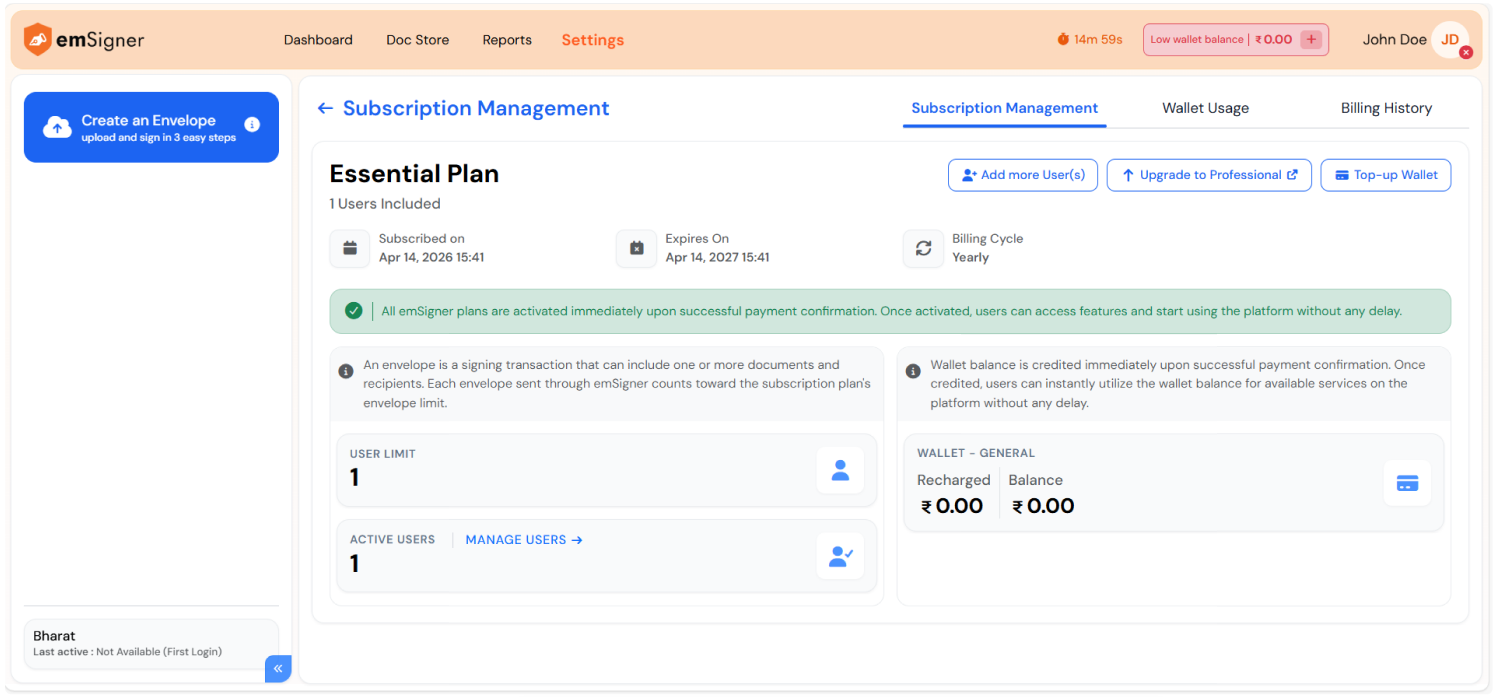
Go to **Settings → Subscription Management**. The page displays your current subscription details including plan name, users included, subscribed date, expiry date, and billing cycle.
**Step 2: Initiate Plan Upgrade**
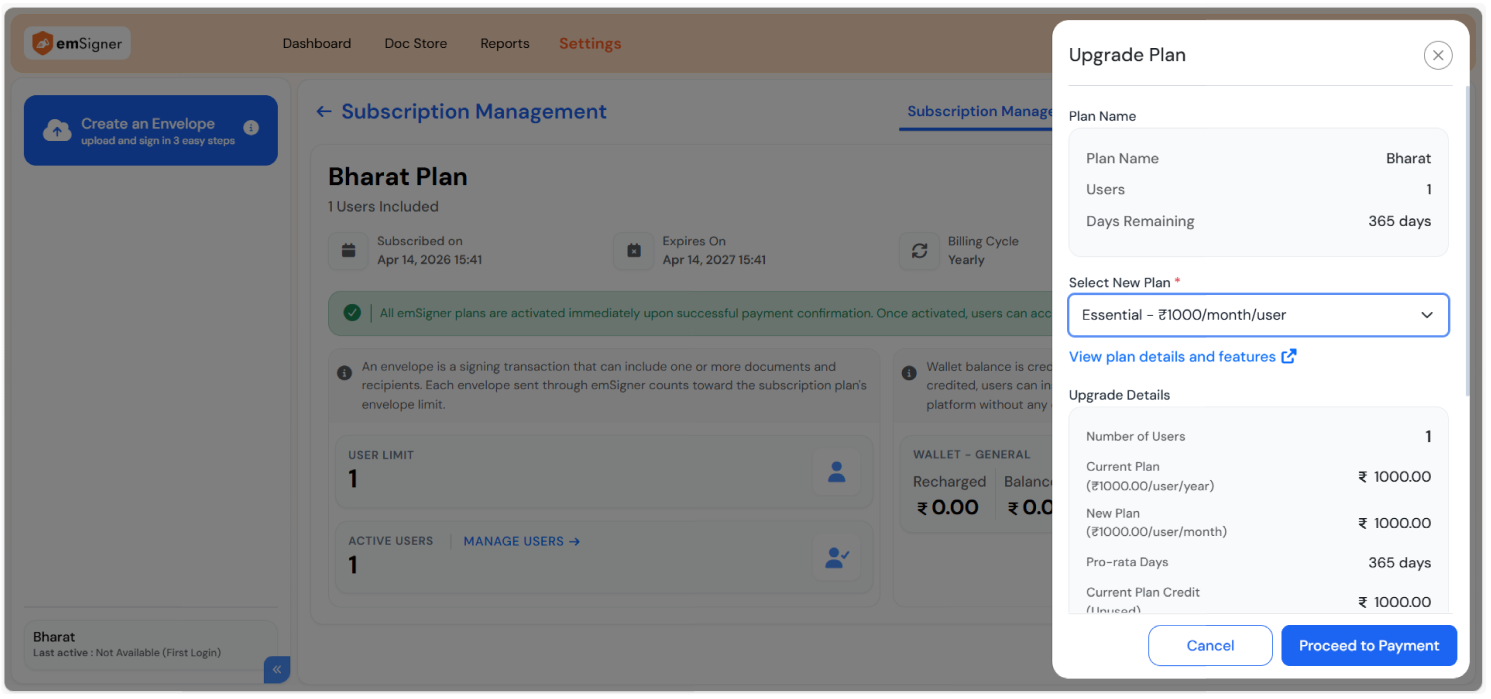
Click **Upgrade Plan** to open the **Upgrade Plan** panel. The panel displays your current plan details for reference:
* **Plan Name** — Your active plan name.
* **Users** — Current number of users in the plan.
* **Days Remaining** — Number of days left in the current subscription cycle.
**Step 3: Select New Plan**
Select the plan you wish to upgrade to from the **Select New Plan** dropdown. You can also click **View plan details and features** to review the features included in the new plan before proceeding.
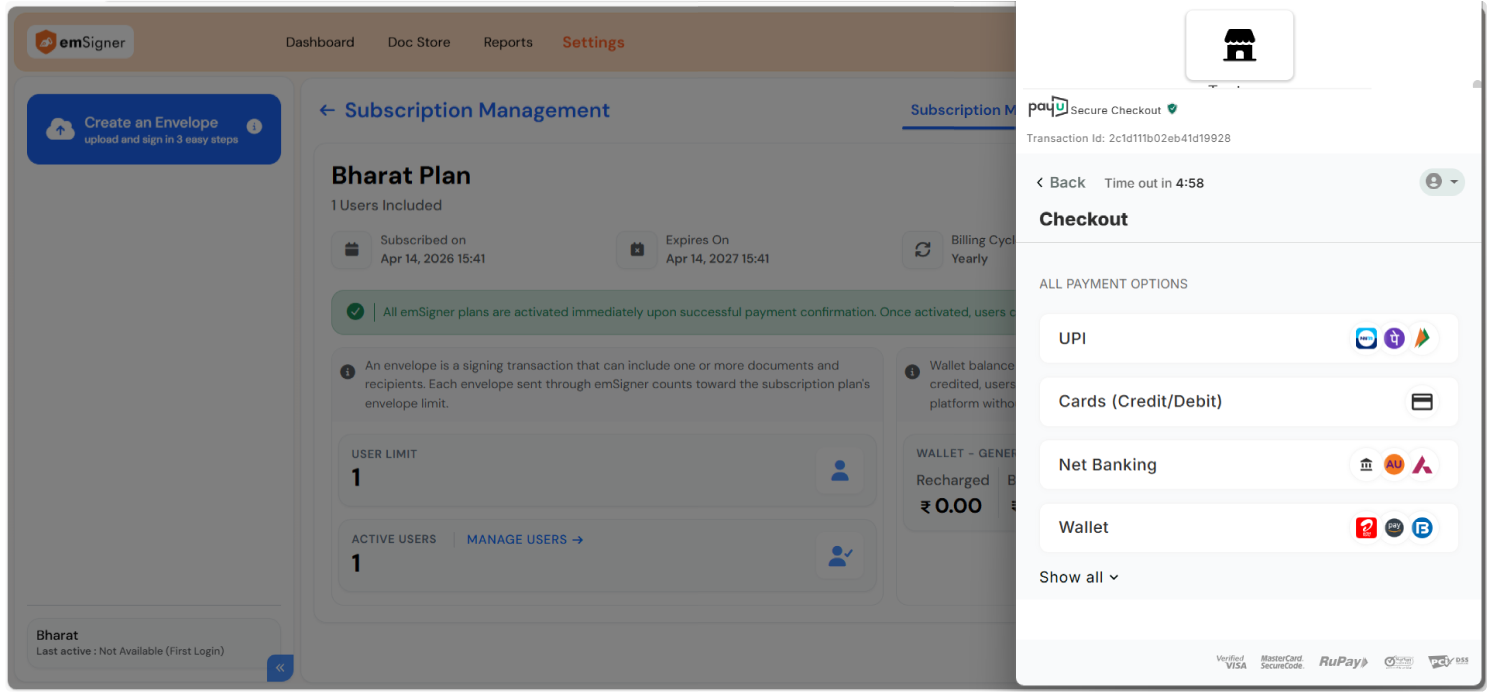
**Step 4: Proceed to Payment**
Click **Proceed to Payment** to be redirected to the secure payment gateway. Complete the payment using your preferred payment method — UPI, Credit/Debit Card, Net Banking, or Wallet.
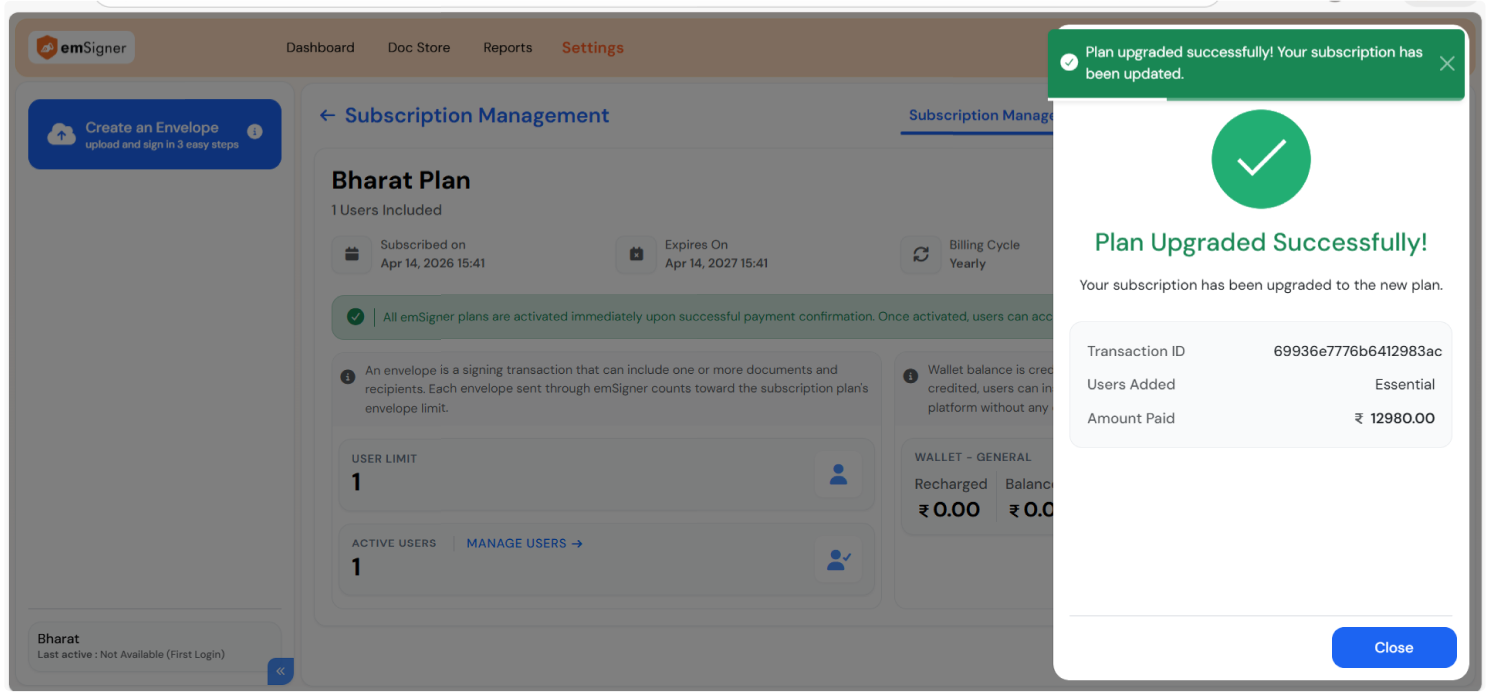
**Step 5: Confirmation**
Once the payment is successful, a **Plan Upgraded Successfully** confirmation is displayed with the following details:
Click **Close** to return to the Subscription Management page, where your updated plan will be reflected immediately.
> **Looking to upgrade to the Professional Plan?** Please [Contact Us](https://www.emsigner.com/ContactUs) to get assistance from our team.
---
# Agent Instructions
This documentation is published with GitBook. GitBook is the documentation platform designed so that both humans and AI agents can read, navigate, and reason over technical content effectively. Learn more at gitbook.com.
## Querying This Documentation
If you need additional information that is not directly available in this page, you can query the documentation dynamically by asking a question.
Perform an HTTP GET request on the current page URL with the `ask` query parameter, and the optional `goal` query parameter:
```
GET https://support.emsigner.com/renew-upgrade/changing-your-plan.md?ask=&goal=
```
`ask` is the immediate question: it should be specific, self-contained, and written in natural language.
`goal` is optional and describes the broader end goal you are ultimately trying to accomplish on behalf of the user. GitBook uses it to tailor the answer towards what is most useful for that goal.
The response will contain a direct answer to the question and relevant excerpts and sources from the documentation.
Use this mechanism when the answer is not explicitly present in the current page, you need clarification or additional context, or you want to retrieve related documentation sections.