> For the complete documentation index, see [llms.txt](https://support.emsigner.com/llms.txt). Markdown versions of documentation pages are available by appending `.md` to page URLs; this page is available as [Markdown](https://support.emsigner.com/logging-in/using-username-password-and-2fa.md).
# Using Username/Password and 2FA
### Login to emSigner – Help & Guidance
#### Overview
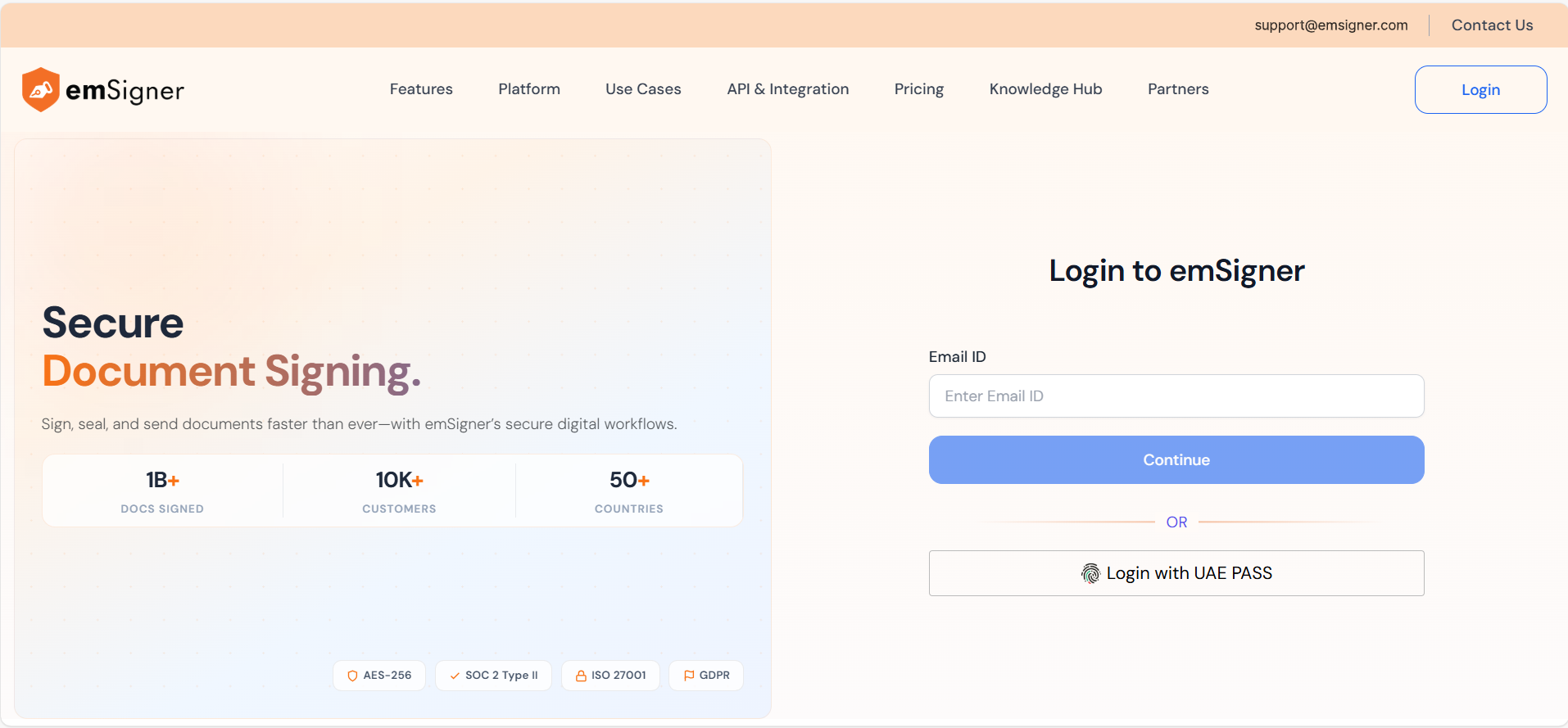
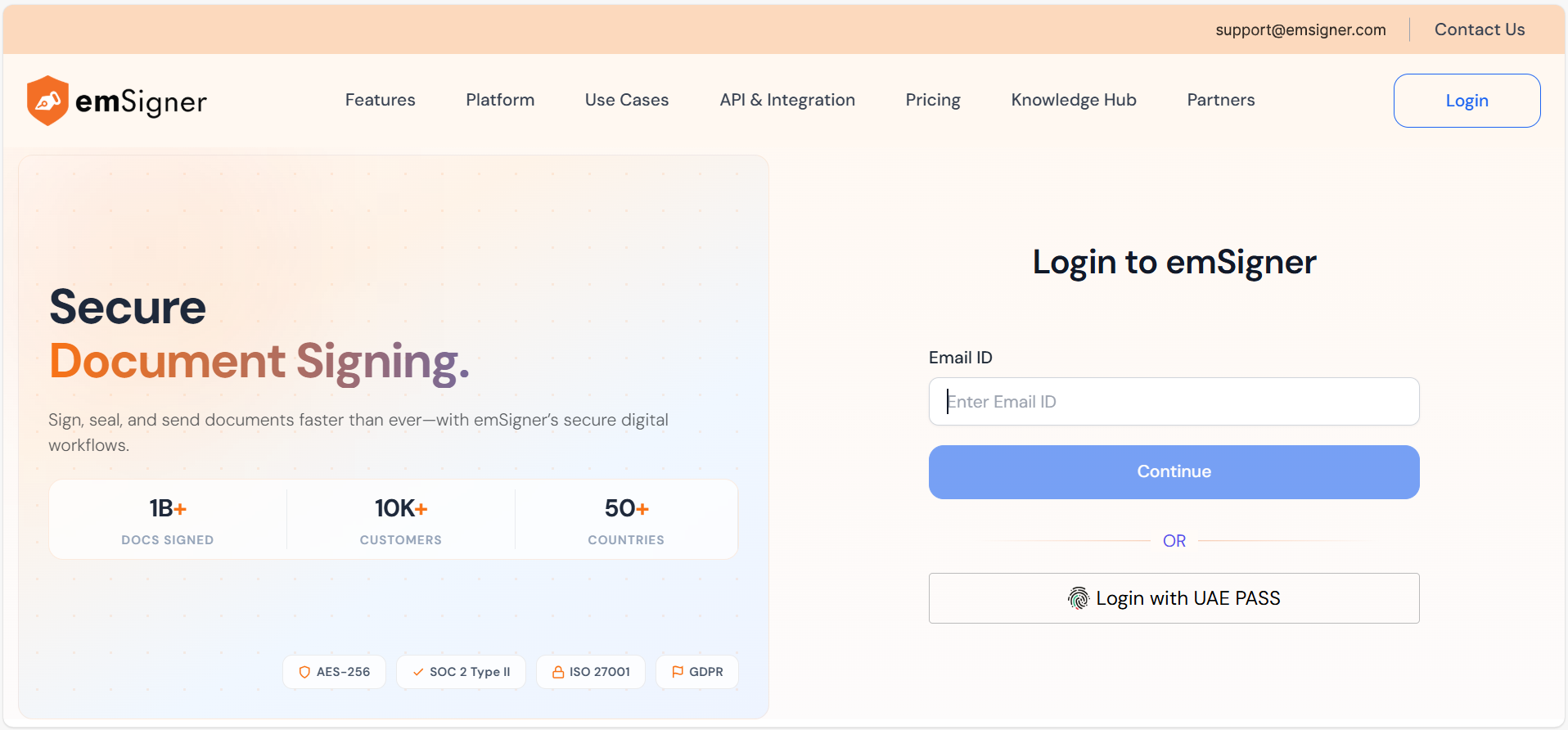
The emSigner login process is designed to be secure, simple, and globally compliant. Login begins by entering your registered email address, which allows the platform to route you correctly and apply the appropriate security controls.
***
#### 1. Email Address as the Primary Identifier
Your **email address is the primary identifier in emSigner**.
* Each emSigner user account is uniquely associated with an email address.
* The email address identifies your user profile, organization, roles, and permissions.
* Ensure you enter the same email address that was used during account creation or onboarding.
***
#### 2. Data Residency Zone Identification
When you enter your email address, emSigner uses it to determine the **data residency zone** applicable to your account.
* emSigner operates multiple regional environments to meet data-localization and regulatory requirements.
* Your email domain and account configuration help identify whether your data is hosted in the applicable region (for example, India, EU, Middle East, or other supported zones).
* This ensures your login is routed to the correct emSigner environment securely and transparently.
***
#### 3. Authentication Method Determination
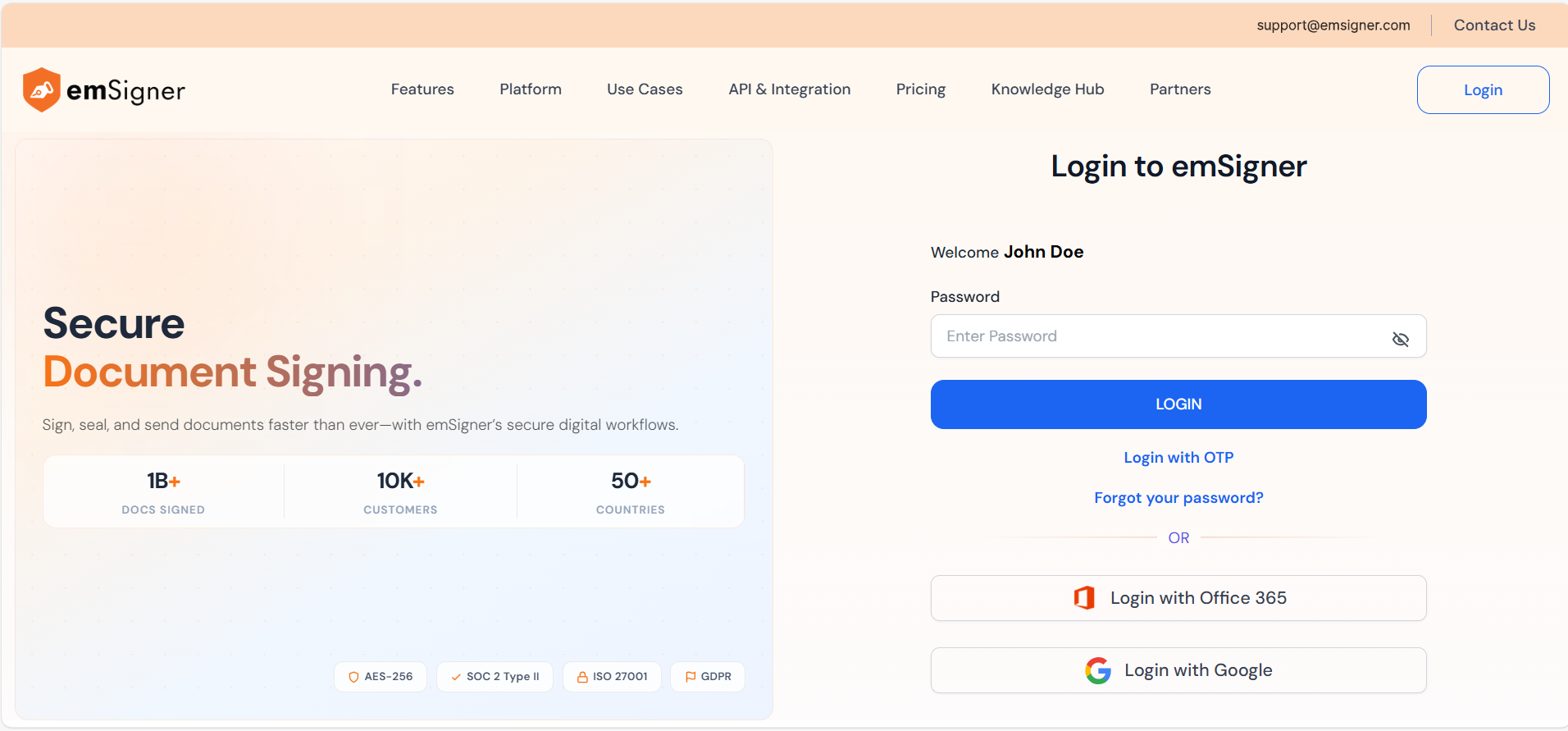
After validating your email address, emSigner determines the **authentication method** required for your account.
Depending on your organization’s security policy, you may be prompted to authenticate using one of the following:
* **Password**
* **2-Factor Authentication such as One-Time Password (OTP)**
* OTP sent via email or SMS, if enabled.
* **Enterprise Single Sign-On (SSO)**
* Log in using **Microsoft 365 (Azure AD / Entra ID)**
* Log in using **Google Workspace**
* **Custom SSO providers such as Okta**
The authentication flow is automatically enforced based on your organization’s configured security policies.
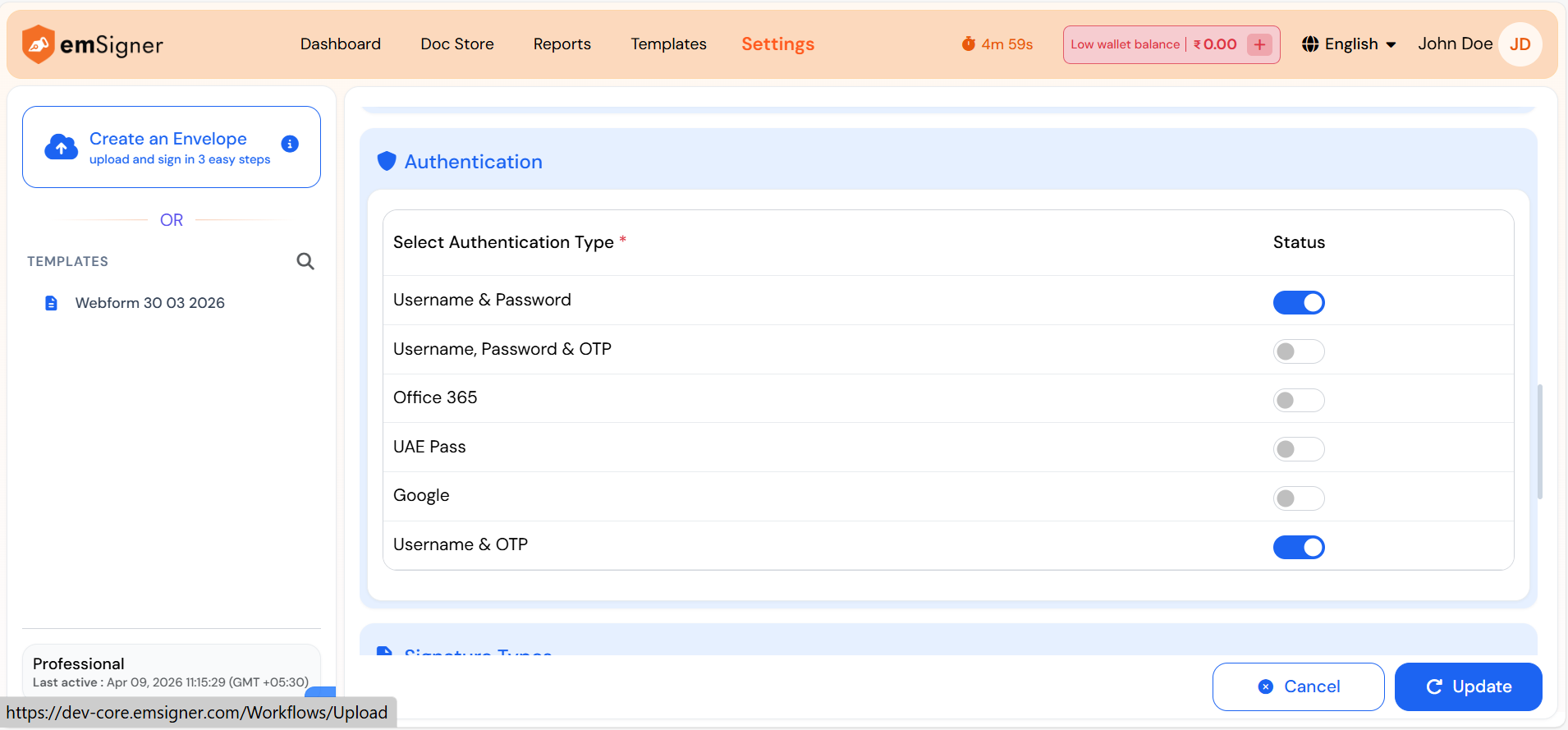
The authentication method or mode can be set up in the Manage Users section of emSigner under Administrator Settings. Using the Login Authentication option, the Administrator of the organization can control the authentication mode that users must use while logging in.
***
#### Common Tips
* Always use your **official work or registered email address**.
* If your organization uses SSO, ensure you are logged in to your Microsoft or Google account before continuing.
* If you do not receive an OTP, check your spam folder or contact your administrator.
***
#### Need Help?
If you are unable to log in or believe your email is not recognized, please contact your organization administrator or raise a support ticket through the emSigner Support Portal.
---
# Agent Instructions
This documentation is published with GitBook. GitBook is the documentation platform designed so that both humans and AI agents can read, navigate, and reason over technical content effectively. Learn more at gitbook.com.
## Querying This Documentation
If you need additional information that is not directly available in this page, you can query the documentation dynamically by asking a question.
Perform an HTTP GET request on the current page URL with the `ask` query parameter, and the optional `goal` query parameter:
```
GET https://support.emsigner.com/logging-in/using-username-password-and-2fa.md?ask=&goal=
```
`ask` is the immediate question: it should be specific, self-contained, and written in natural language.
`goal` is optional and describes the broader end goal you are ultimately trying to accomplish on behalf of the user. GitBook uses it to tailor the answer towards what is most useful for that goal.
The response will contain a direct answer to the question and relevant excerpts and sources from the documentation.
Use this mechanism when the answer is not explicitly present in the current page, you need clarification or additional context, or you want to retrieve related documentation sections.