> For the complete documentation index, see [llms.txt](https://support.emsigner.com/llms.txt). Markdown versions of documentation pages are available by appending `.md` to page URLs; this page is available as [Markdown](https://support.emsigner.com/initiate-and-sign-envelopes/using-templates/creating-and-managing-templates/configure-a-fixed-form-template/configuring-attachment-profile.md).
# Configuring Attachment Profile
Signer Attachments allow you to collect **supporting documents from signatories** as part of the signing workflow (for example, ID proof or authorization documents). This configuration happens in **two stages**:
1. **Admin-level setup** and
2. **Template-level assignment to signatories**.
***
**Configure Signer Attachments (Admin Setup)**
Signer Attachments allow you to collect supporting documents from signatories as part of the signing workflow — for example, ID proof or authorisation documents. Before attachments can be assigned to a template, they must be configured by an admin.
**To access Signer Attachments:**
Navigate to **Settings → Attach Supporting Documents During Signing**.
The page lists all existing attachment profiles, showing the **Profile Name**, **Created Info** (Created By, Created On, Modified By, Modified On), and **Actions** for each entry. You can edit or delete any existing profile using the action icons in the corresponding row.
***
**Creating a New Profile**
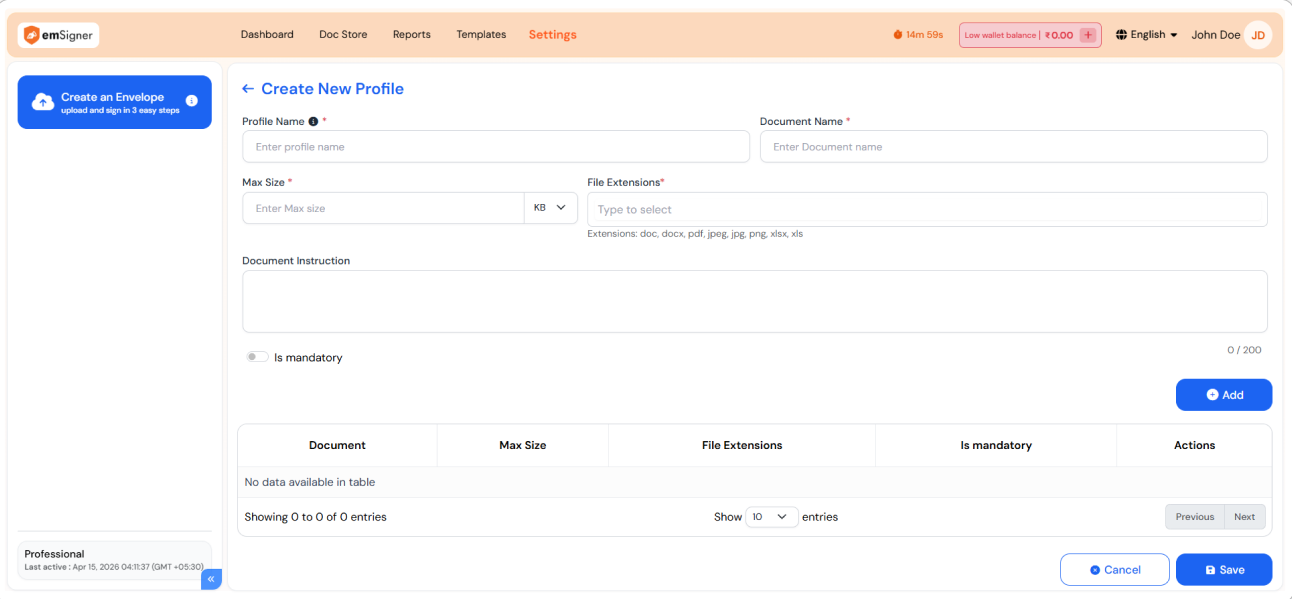
Click **Create New** to define a new attachment profile. The **Create New Profile** form includes the following fields:
* **Profile Name** *(required)* — A logical name to identify the attachment profile (e.g., IdentityProof, VendorDocuments).
* **Document Name** *(required)* — The name of the document as it will be displayed to the signer during the signing process.
* **Max Size** *(required)* — The maximum permitted file size for the uploaded document. Enter the value and select the unit (KB or MB) from the dropdown.
* **File Extensions** *(required)* — The file formats accepted for this document. Supported extensions include doc, docx, pdf, jpeg, jpg, png, xlsx, and xls. Type to search and select the applicable formats.
* **Document Instruction** — Optional guidance text displayed to the signer while uploading the document. Supports up to 200 characters.
* **Is Mandatory** — Enable this toggle to make the document upload compulsory for the signer before they can proceed with signing.
Once the details are filled in, click **+ Add** to add the document entry to the profile. The added entry appears in the table at the bottom of the form, showing the Document name, Max Size, File Extensions, and whether it is mandatory.
A single profile can contain multiple document entries. Repeat the process to add additional documents to the same profile.
When all required documents have been added, click **Save** to create the profile. Click **Cancel** to discard the changes.
***
**Key Notes**
* Once saved, the attachment profile becomes available for selection when configuring signatories in a template.
* Multiple document types can be grouped under a single profile, allowing you to collect all required supporting documents from a signatory in one go.
***
**Assign Attachment Profile in a Fixed Form Template**
After adding signatories in the **Add Participants** step, an attachment profile can be assigned to each signatory individually.
**Steps:**
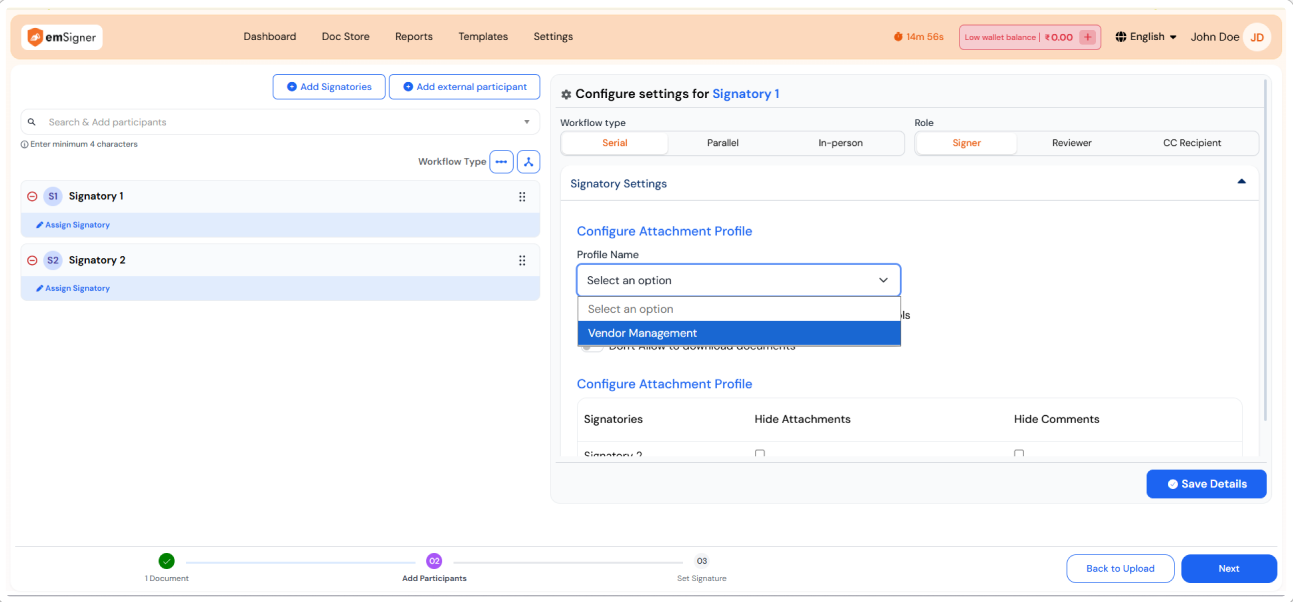
1. In the **Add Participants** step, click on the signatory from the left panel to open their **Configure settings** panel on the right.
2. Under **Signatory Settings**, locate the **Configure Attachment Profile** section.
3. Click the **Profile Name** dropdown and select the appropriate profile from the list.
* The dropdown is populated with profiles created under **Settings → Attach Supporting Documents During Signing**.
4. Click **Save Details** to apply the configuration for that signatory.
Repeat the process for each signatory who is required to submit supporting documents as part of the signing workflow.
***
**Key Notes**
* Attachment profile assignment is signatory-specific. Each signatory in the workflow can be assigned a different profile depending on the documents required from them.
* Only profiles previously created in the admin settings are available for selection in this dropdown.
* If no attachment is required for a particular signatory, the **Profile Name** field can be left unselected.
---
# Agent Instructions
This documentation is published with GitBook. GitBook is the documentation platform designed so that both humans and AI agents can read, navigate, and reason over technical content effectively. Learn more at gitbook.com.
## Querying This Documentation
If you need additional information that is not directly available in this page, you can query the documentation dynamically by asking a question.
Perform an HTTP GET request on the current page URL with the `ask` query parameter, and the optional `goal` query parameter:
```
GET https://support.emsigner.com/initiate-and-sign-envelopes/using-templates/creating-and-managing-templates/configure-a-fixed-form-template/configuring-attachment-profile.md?ask=&goal=
```
`ask` is the immediate question: it should be specific, self-contained, and written in natural language.
`goal` is optional and describes the broader end goal you are ultimately trying to accomplish on behalf of the user. GitBook uses it to tailor the answer towards what is most useful for that goal.
The response will contain a direct answer to the question and relevant excerpts and sources from the documentation.
Use this mechanism when the answer is not explicitly present in the current page, you need clarification or additional context, or you want to retrieve related documentation sections.