> For the complete documentation index, see [llms.txt](https://support.emsigner.com/llms.txt). Markdown versions of documentation pages are available by appending `.md` to page URLs; this page is available as [Markdown](https://support.emsigner.com/initiate-and-sign-envelopes/signing-a-document/as-an-internal-user/reading-through-documents.md).
# Reading through documents
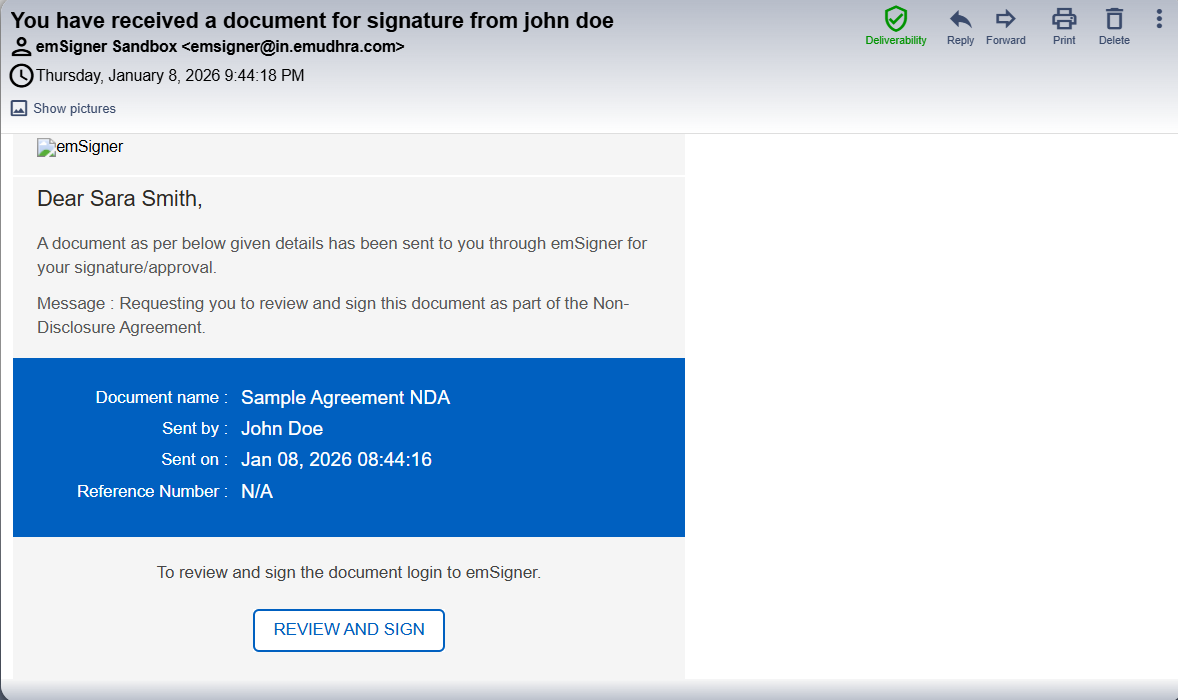
When an internal user is assigned as a signatory, the signing journey begins with an email notification from emSigner.
#### Email Notification
The email includes:
* Document name
* Sender name
* Sent date and time
* A **Review and Sign** action button
Clicking **Review and Sign** initiates the signing process.
***
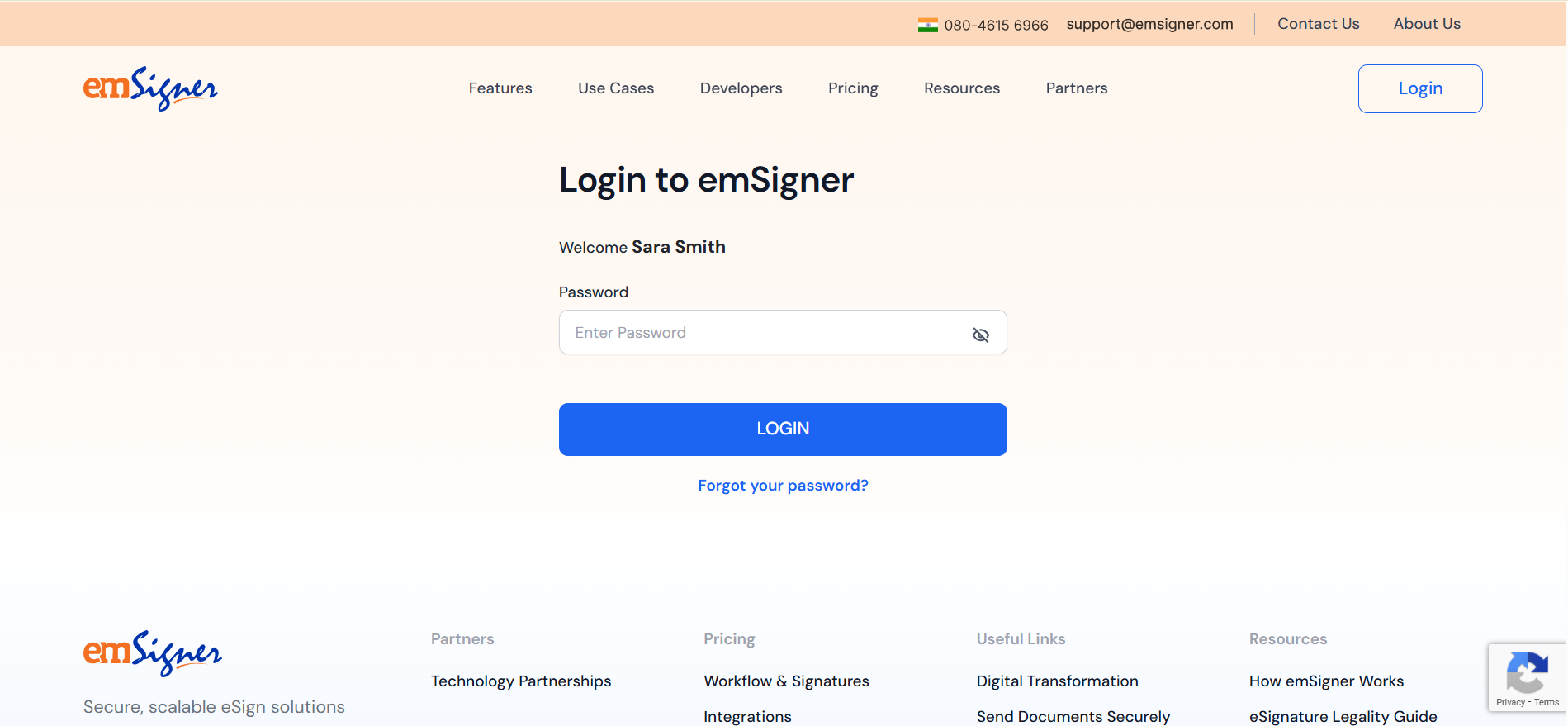
#### Login to emSigner
* The user is redirected to the emSigner login page.
* After successful authentication, the user is taken directly to the assigned document.
* No manual navigation is required to locate the document.
***
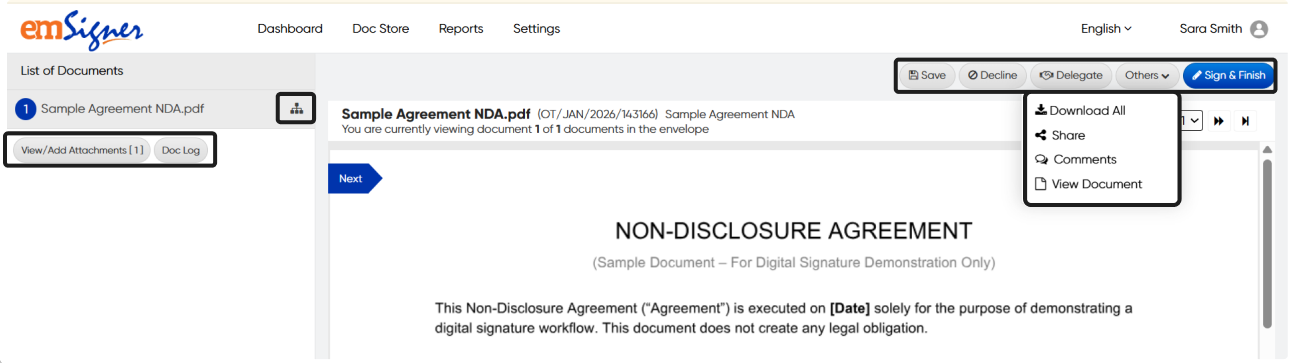
#### Document Viewer Overview
Once inside the document viewer, the user can:
* Read the complete document content
* Navigate between pages using page controls
* View document metadata such as document name and reference number
The viewer also provides quick access to key actions and information.
***
#### Available Actions While Reading
While reviewing the document, the following options are available:
* **Next**\
Guides the user to the next required action, such as initials or signature placeholders.
* **View/Add Attachments**\
View supporting documents or upload attachments (if enabled).
* **Doc Log**\
View the audit trail and activity history of the document.
* **Signing Order Indicator**\
Displays the list of participants and the signing sequence.
* **Save**\
Save progress and continue signing later.
* **Decline**\
Decline the document with a reason.
* **Delegate**\
Delegate signing responsibility to another user (if permitted).
* **Others**\
Additional options such as:
* Download document(s)
* Share
* Add comments
* Review document details
* **Sign & Finish**\
Used once all required actions (fields, initials, signatures) are completed.
***
#### Guided Navigation to Required Actions
* The **Next** button highlights and navigates the user directly to:
* Initial placeholders
* Signature placeholders
* Required fields
* This ensures the user does not miss any mandatory signing steps and can move through the document efficiently.
---
# Agent Instructions
This documentation is published with GitBook. GitBook is the documentation platform designed so that both humans and AI agents can read, navigate, and reason over technical content effectively. Learn more at gitbook.com.
## Querying This Documentation
If you need additional information that is not directly available in this page, you can query the documentation dynamically by asking a question.
Perform an HTTP GET request on the current page URL with the `ask` query parameter, and the optional `goal` query parameter:
```
GET https://support.emsigner.com/initiate-and-sign-envelopes/signing-a-document/as-an-internal-user/reading-through-documents.md?ask=&goal=
```
`ask` is the immediate question: it should be specific, self-contained, and written in natural language.
`goal` is optional and describes the broader end goal you are ultimately trying to accomplish on behalf of the user. GitBook uses it to tailor the answer towards what is most useful for that goal.
The response will contain a direct answer to the question and relevant excerpts and sources from the documentation.
Use this mechanism when the answer is not explicitly present in the current page, you need clarification or additional context, or you want to retrieve related documentation sections.